
This guide explains what a Client Admin account is in TickX IQ and how it allows organisations to manage their own user access, permissions, and account settings. It covers how admins can create, edit, and remove users; assign marketer or producer roles; and control access to specific productions, experiences, or territories. It also includes guidance on resetting password creation links, adding accounts to existing users, and how to request updates to admin accounts through TickX. The guide is designed to help clients maintain full visibility, control, and security over their platform usage.
What is a Client Admin account?
Clients can now nominate an admin from their organisation who can then handle all account creation, management and deletion. Client Admins will also be able to grant or deny access to specific productions, experiences or territories and set which parts of the platform users have access to. Only Client Admins can add or remove users or change their permissions.
This provides more control and security to clients ensuring admins have full visibility and control over who has access.
Getting Started
To manage users and their related accounts:
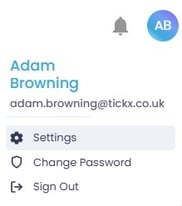
Click your initials top right > settings
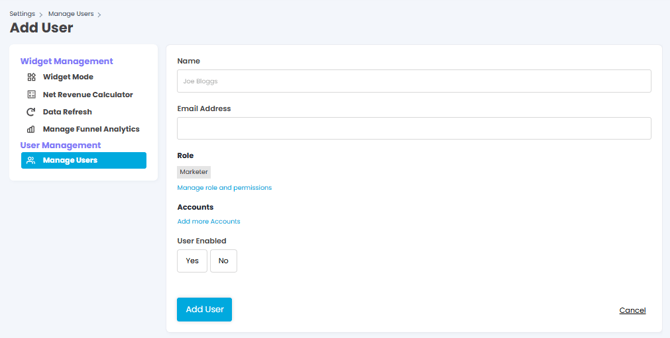
User management > Manage users > Input name > Email address > Choose “producer” or “marketer” > Select accounts to grant access by clicking the checkboxes associated with each experience > Save > “Yes” user enabled > Add user
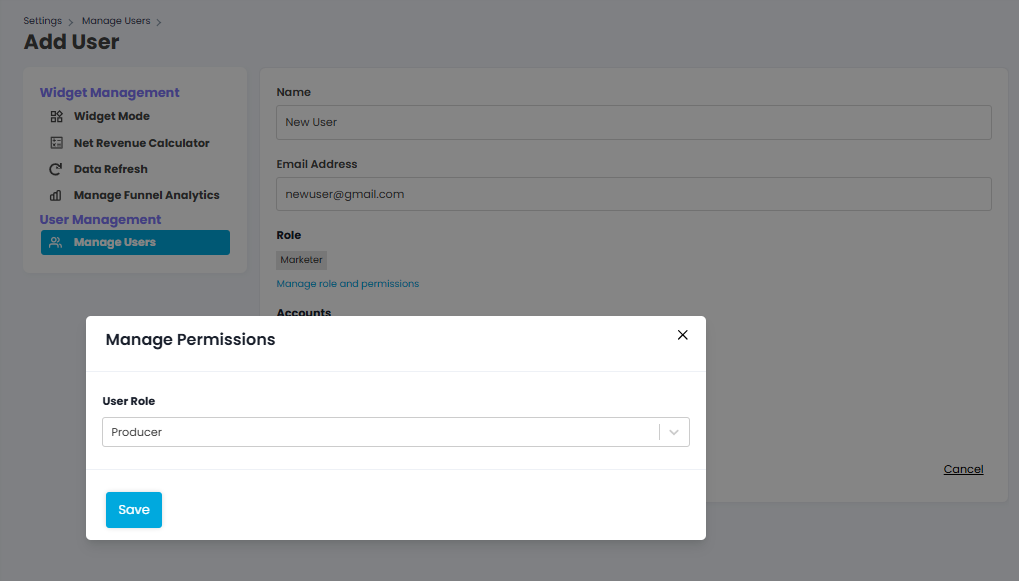
Marketer vs Producer
These roles both offer the same functionalities, but help us understand who is using the IQ platform.
Password creation reset
Sometimes a user may need their password creation to be reset. Admins can manage this easily by going to their account and pressing click here on the banner which appears towards the top of the screen.

Adding new accounts to existing users
Admins can add further accounts to existing users by navigating to Users and searching for the existing user. Simply click on the user name to edit the user and click 'Add account'. Admins will then be able to search in the dropdown and add them to any accounts you are admin for.
Please note users may need to log out and back in to see the new account appear in the dropdown.
Updating Admin accounts
To add a new experience to an admin account, or to create new Admins, your TickX account manager will need written signoff from the main account holder.
We're here to help
As always please contact your account manager or support@tickx.com if you need any help.