
This guide explains how to set up Dotdigital Cart Abandonment in TickX IQ so you can automatically trigger emails to customers who abandon their purchase. It walks you through configuring the Dotdigital integration, creating a triggered email campaign, adding all required merge fields for tracking and personalisation, and setting timing rules such as cool-off periods and send delays. You’ll also learn how to add advanced segmentation, preview and test your templates, and activate the workflow so that drop-offs receive the right message at the right time.
Keep reading to learn how to set-up your Dotdigital Cart Abandonment so you can trigger emails to your drop-offs. You can find out more about TickX Cart Abandon here.
Note: Before you get started you need ensure that your from email is approved and authenticated; Verify DNS Records. Also, that you have transactional emails enabled within your Dotdigital platform; Transactional Email Dotdigital Guide.
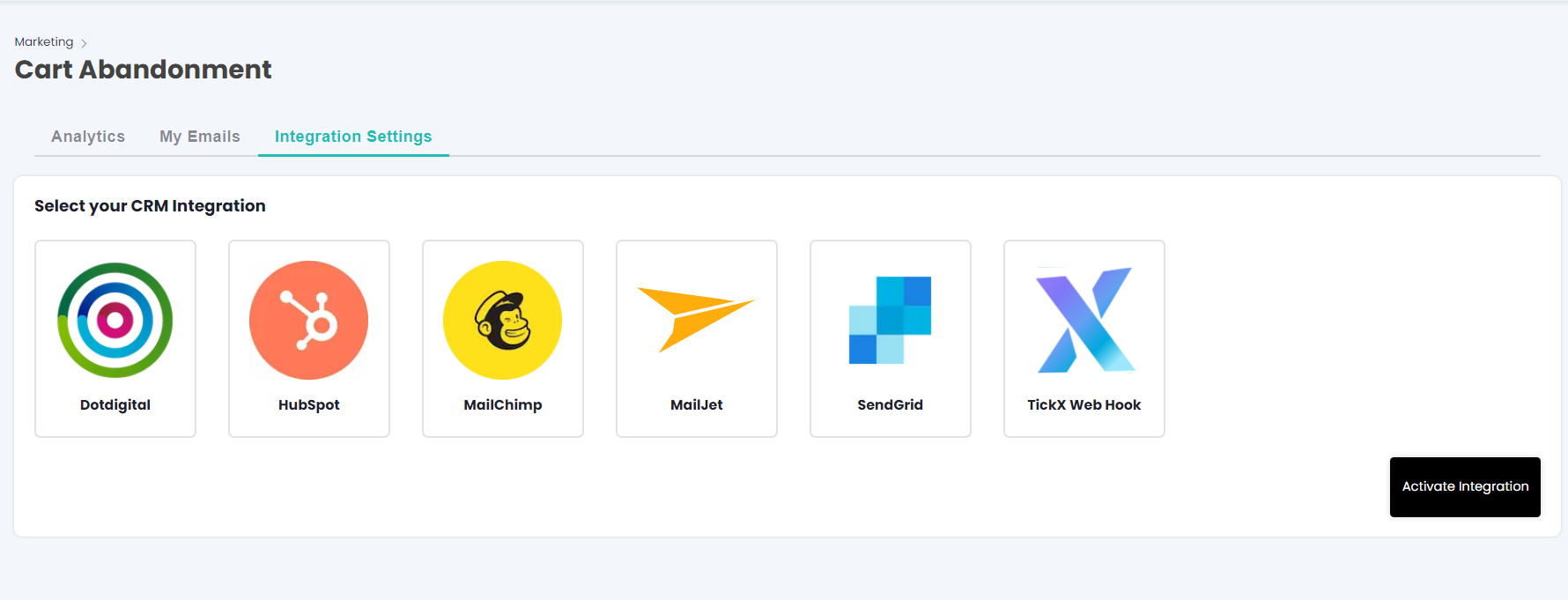
- Go to Cart Abandonment > Integration Settings > Dotdigital > Activate Integration
- Add Integration Setting Details
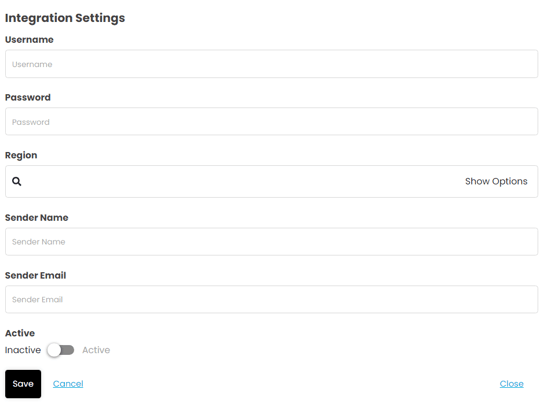
- Add Username
- Login to Dotdigital
- Go to Access > API Users
- Add New User
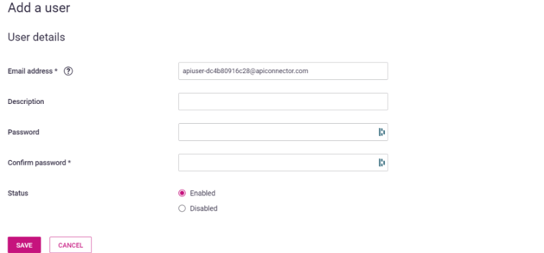
- Copy Email Address → add this into Username field in TickX IQ
- Enter Password
- Whilst following the above steps you will need to create & confirm a password
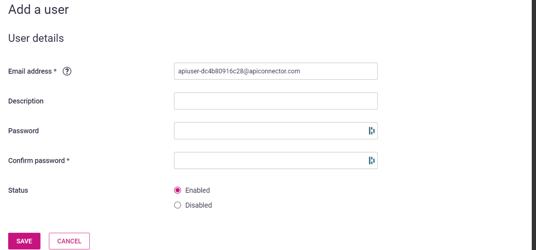
- The password you create in Dotdigital → add this into the Password field in TickX IQ
- Whilst following the above steps you will need to create & confirm a password
- Select API Region Key
- Go to Access > API Users
- See your API region - example is R2

- Select your API Region Key to match the information within Dotdigital
- Add Sender Name - This is the 'From Name' you would like your emails to come from
- Add Sender Email - This is the 'From Email' you would like your emails to come from
- Toggled Active On - Save. Your Integration is now set-up.
- Add New Email > My Email > Add Email
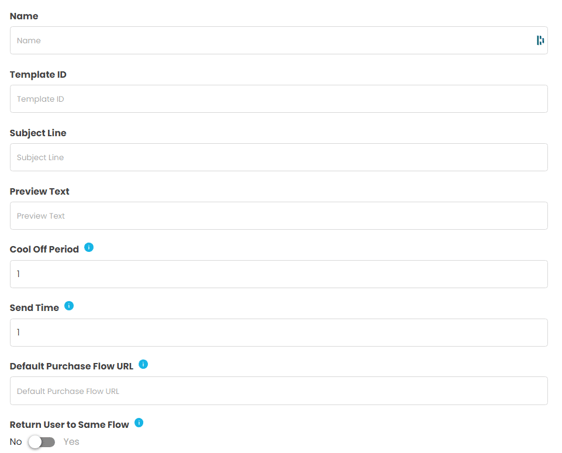
- Add your email name - as you can have multiple cart abandon emails set-up, this is a way to differentiate the email trigger list. E.g. Cart Abandon - All Users
- Add Template ID
- Go to Email > Email Campaigns > New Campaign
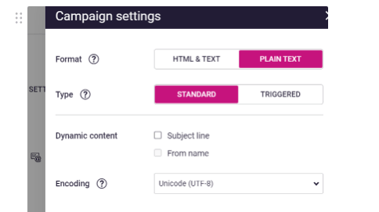
- Follow the steps to create a new campaign. Within the settings the campaign must be set to ‘Triggered’ to allow for the TickX CRM Triggers to work.
-
All Campaigns must include an ‘Unsubscribe’ link within them. PLEASE NOTE: Dotdigital has a sensitive template builder so please make sure you follow the rules when setting this up; Designing a Template in Dotdigital
- We have some essential merge fields that need to be added into your template so that we can report effectively and customers are presented with the relevant flow.
- @TICKX_TRACK_PIXEL@ This is to ensure we can report on the Cart Abandon data effectively. We recommend to add this as hidden text at the bottom of the template.
- @FLOW_URL@ Add this merge fields as your CTA button link/URL.
- @TICKX_UNSUBSCRIBE_URL@ This allows drop-offs to opt-out of receiving any further Cart Abandon notifications
- We have some additional merge fields which can be added to your templates to provide some individualised information to your customers.
- @FNAME@
- @LNAME@
- @MC_PREVIEW_TEXT@
- You need to add some code into the template within Dotdigital; Preview Text
- Then as part of your Pre-Header add in the merge field @MC_PREVIEW_TEXT@ then you can make any edits to the content within the Dashboard and this will be merged in.
- @BOOKING_DATE@
- @BOOKING_NAME@
- @BOOKING_VENUE@
- @TICKET_TYPES@
- @RESTAURANT_RESERVATION@
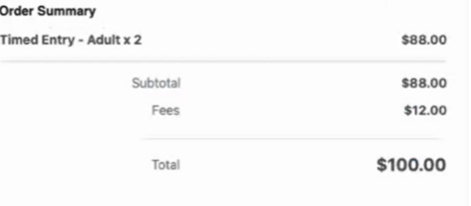
- @ORDER_SUMMARY@
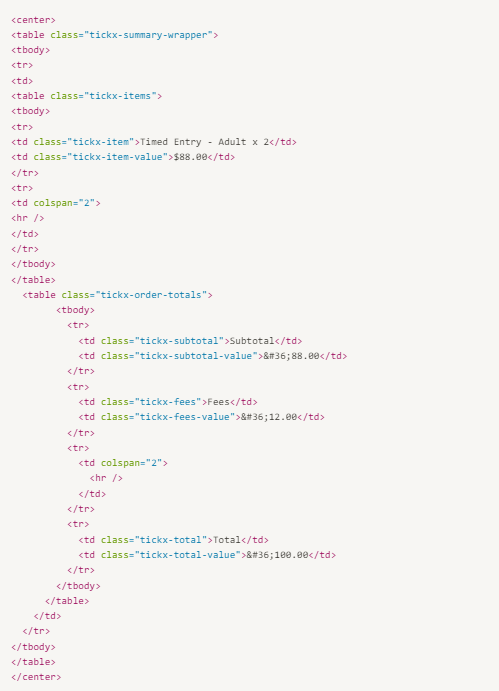
- @ORDER_SUMMARY_RAW@
- Add Subject
- Add Preview Text
- Add Cool Off period This is the number of days to wait before the same contact is sent the initial email again - preventing multiple emails if someone visits and drops-off multiple times
- Add Send Time This is how many hours you would like to trigger the email either after drop-off
- Add Default Purchase Flow URL This is the Purchase Flow you would like your drop-offs to be directed to from the CTA button
- Return User to Same Flow If you toggle this setting on then drop-offs will be directed back to the specific flow that they left when they click the CTA button
- Advanced Options
- You can segment who receives content based upon our Advanced Options
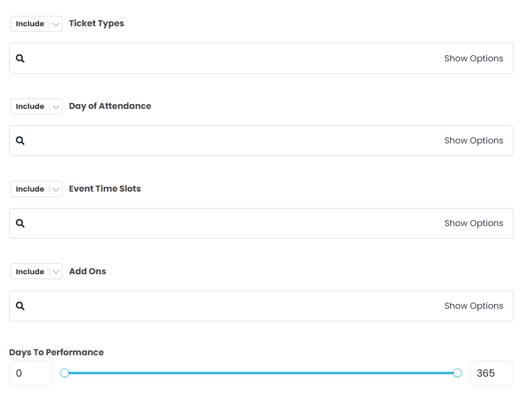
- For example; you might have different content to send customers who dropped-out of an event that is happening in one day attending from those looking to attend in 6 months. These advanced options allow you to trigger more specified content to your drop-offs.
- You can segment who receives content based upon our Advanced Options
- If you want to send a test before toggling to Active > Save > Go to Actions > Send Test Email
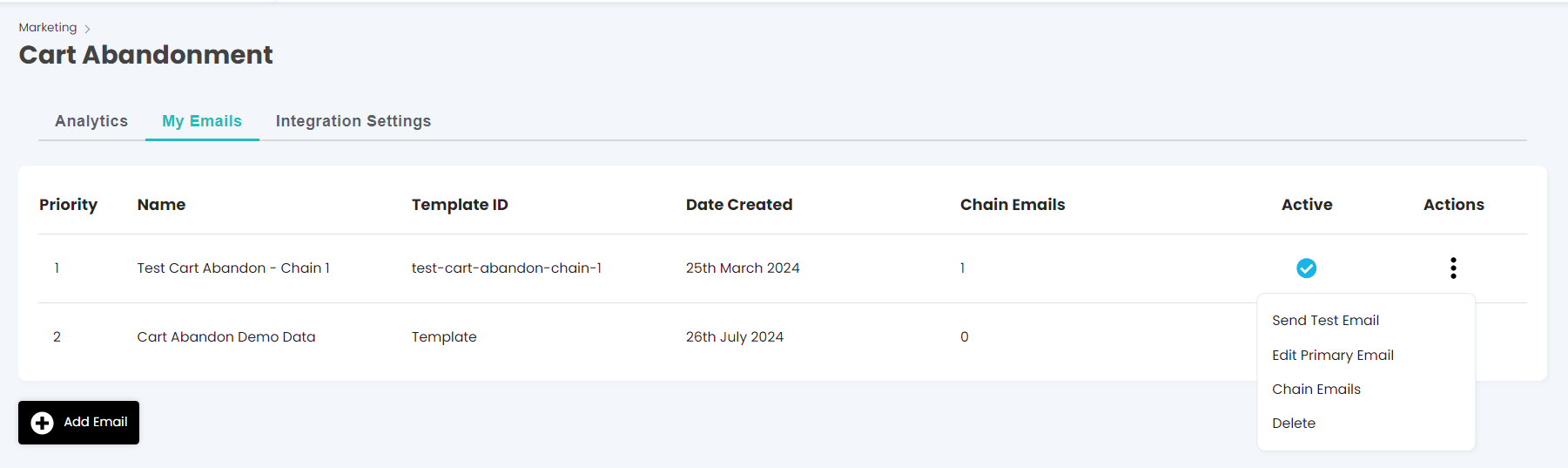
- Enter the email you would like to send the test to
- If the email is set-up correctly you will get a copy of the email in your inbox
- If there are any issues you will receive a TickX email highlighting the error
- Once you are happy > Go to Actions > Edit > Toggle Active On > Your email will now start triggering once the criteria is met.