
How to set-up your Klaviyo Cart Abandonment so you can trigger emails to your drop-offs. You can find out more about TickX Cart Abandon here.
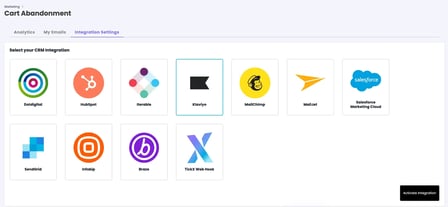
- Go to Cart Abandonment > Integration Settings > Select Klaviyo > Activate Integration
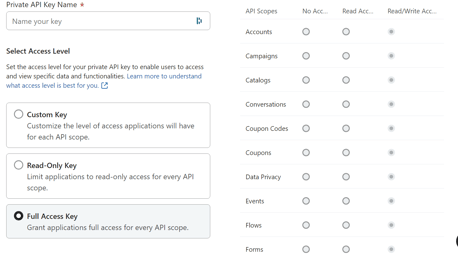
- Login to Klaviyo > Settings > API Keys
- Create Private API Key > Add Name > Full Access > Save
- A new API Key will be created → copy and add this into API Key field in TickX IQ
- Add Email Setting for your Automation Journey
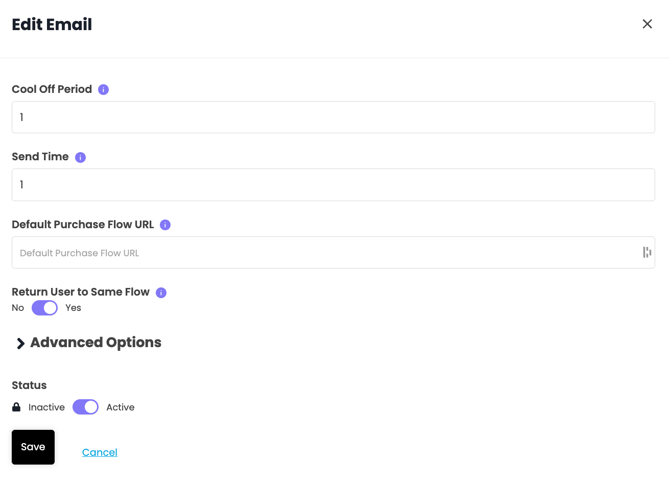
Add in the default Flow URL so that this populates the field within Klaviyo for where to send the drop-offs- Send Time - this is the length of time it takes for us to send the information through to Klaviyo - we recommend keeping this at 1 and then if you would like to add any extra time to when the email triggers that this delay is handled within the Klaviyo automation journey builder.
- Once saved a new custom event will appear within Klaviyo called TickX_AbandonCart - you can now use this within your automation flows and all data from the Cart Abandon is sent along as part of the event so you can include merge details within your email template to populate these as they trigger.