
How to set-up your Mailjet Integration so you can trigger event based emails.
Note: Before you get started you need ensure that your from email is approved and authenticated; Verify Email Address. Also, that you have transactional emails enabled within your Mailjet platform; Email Mailjet Guide.
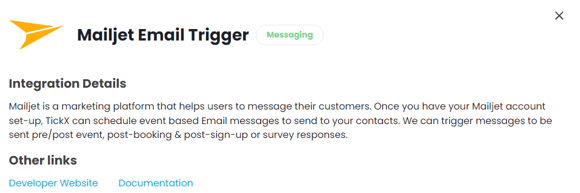
- Go to Integrations Hub > Messaging > Mailjet Email Trigger> Add Details
- Add Integration Setting Details
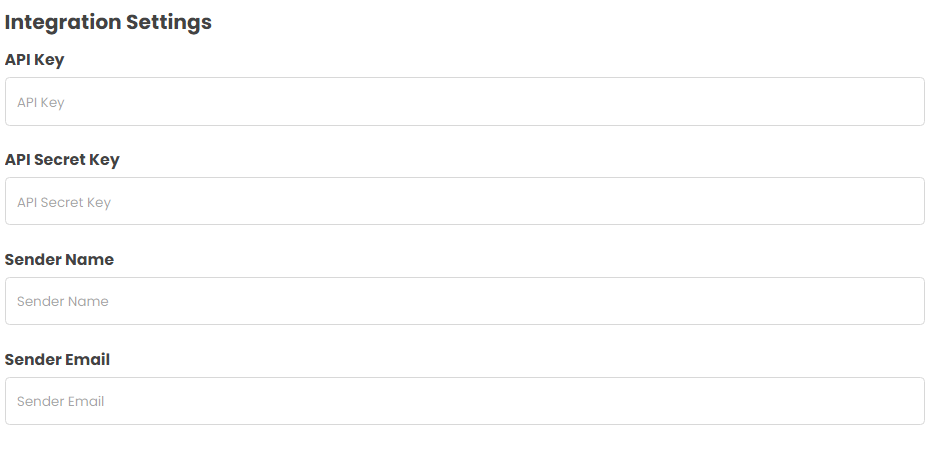
- Enter API Key
- Login to Mailjet
- Go to Settings > API Key > View → add this into API Key field in TickX IQ
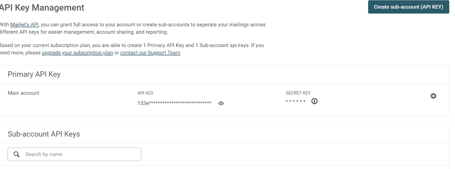
- A new API Key will be created → add this into API Token field in TickX IQ
- Enter API Secret Key
- Login to Mailjet
- Go to Settings > Secret Key > View → add this into API Secret Key field in TickX IQ
- Add Sender Name - This is the 'From Name' you would like your emails to come from
- Add Sender Email - This is the 'From Email' you would like your emails to come from
- Toggle Active On - Save. Your Integration is now set-up.
- Add New Email
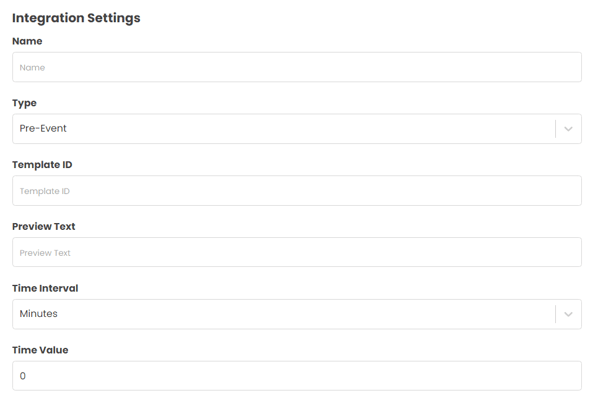
- Add your email name - as you can have multiple email triggers set-up this is a way to differentiate the email trigger list. E.g. Know Before You Go
- Select Type > This is to determine after which event type you would like your email to trigger. E.g. Pre-Event
- Add Template ID
-
Go to Mailjet > Templates > Email templates > Create Email Template
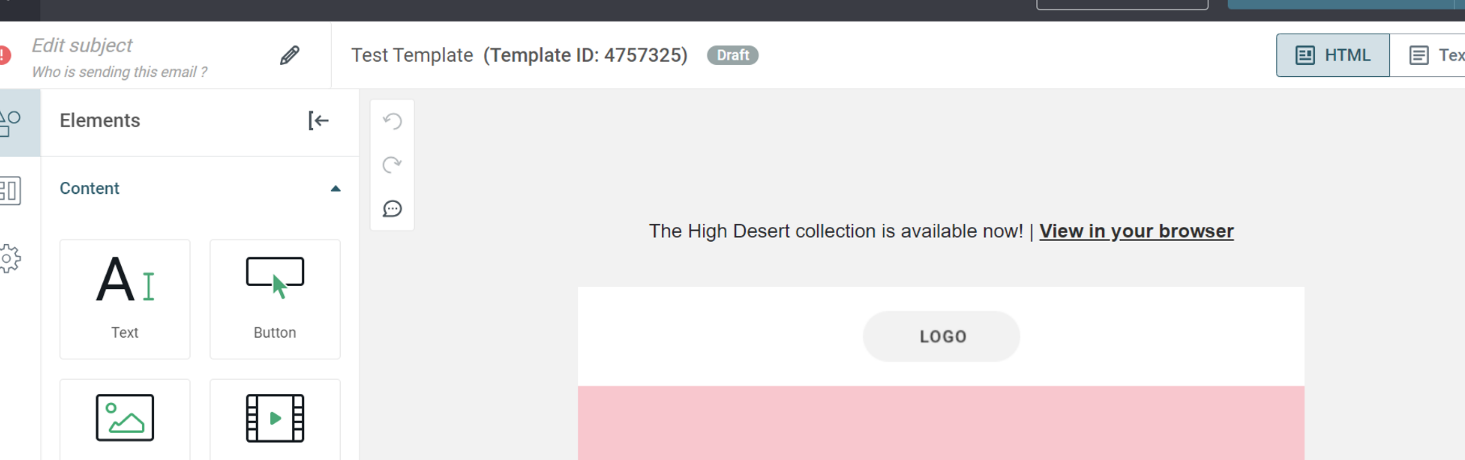
- Copy Template ID → add this into Template ID field in TickX IQ
-
We have some additional merge fields which can be added to your templates to provide some individualised information to your customers.
- {{var:FNAME}}
- {{var:LNAME}}
- {{var:MC_PREVIEW_TEXT}}
Directly add their text into the ‘Preview Text’ box within MailjetOr if you add {{var:MC_PREVIEW_TEXT}} into the Preview text box then this will update with whatever is added within the Dashboard
- {{var:BOOKING_DATE}}
- {{var:BOOKING_NAME}}
- {{var:BOOKING_VENUE}}
- {{var:TICKET_TYPES}}
- {{var:RESTAURANT_RESERVATION}}
- {{var:ORDER_SUMMARY}}
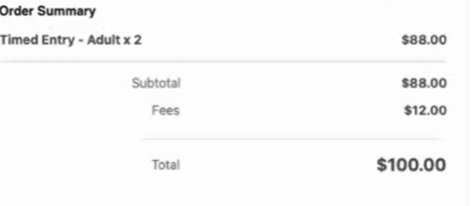
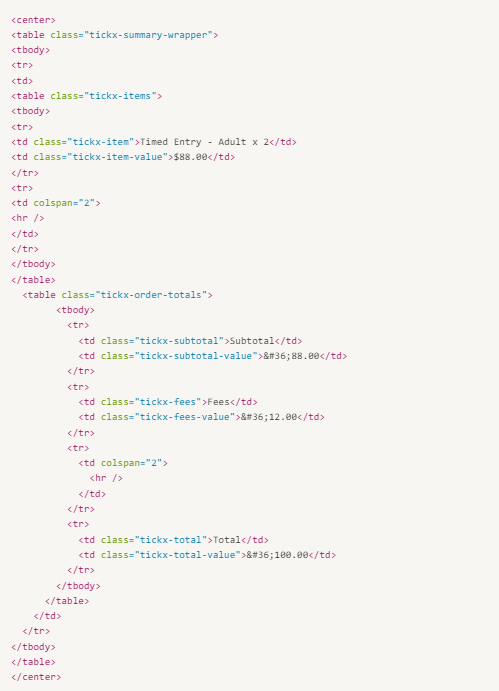
- {{var:ORDER_SUMMARY_RAW}}
- {{var:MANAGE_ORDER_URL}}
- {{var:SINGLE_USE_DISCOUNT_CODE}}
-
- Add Preview Text
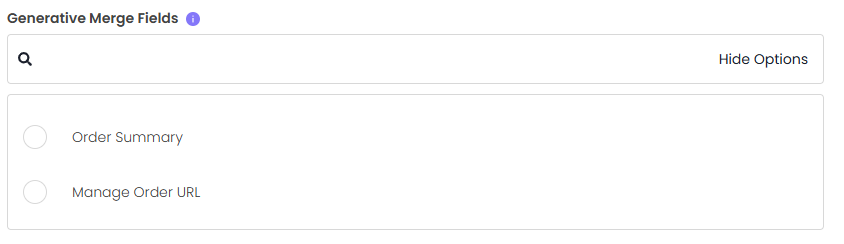
- If you are using the Generative Merge fields within your content then please make sure you select these within TickX on set-up (speak to your account managers to ensure you have these set-up to function).
- Add Time Interval - Minutes or Hours
- Add Time Value (Numeric) This is how many minutes/hours you would like to trigger the email either before/after the Event Type.
- Advanced Options
- You can segment who receives certain content based upon our Advanced Options
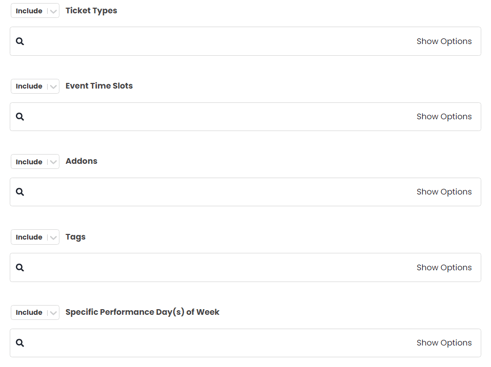
- For example; you might have different Know Before You Go content to send customers attending Mid-Week from those attending at the Weekend. These advanced options allow you to trigger more specified content to your attendees.
- You can segment who receives certain content based upon our Advanced Options
- If you want to send a test before toggling to Active > Save > Go to Actions > Send Test Email
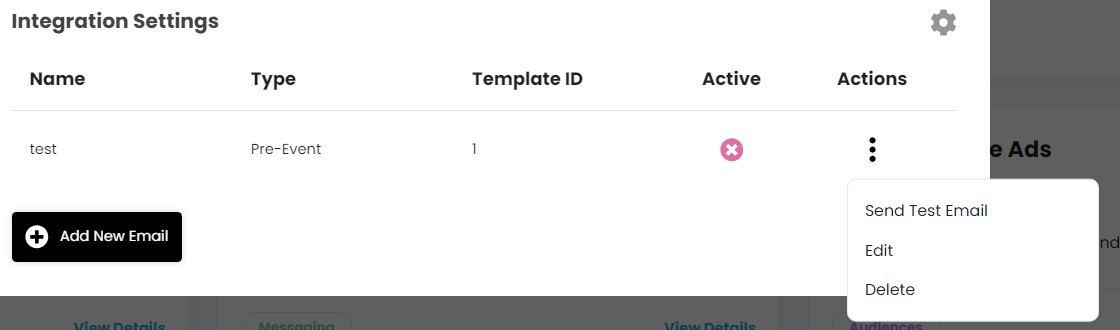
- Enter the email you would like to send the test to
- If the email is set-up correctly you will get a copy of the email in your inbox
- If there are any issues you will receive a TickX email highlighting the error
- Once you are happy > Go to Actions > Edit > Toggle Active On > Your email will now start triggering once the criteria is met.