
This guide explains how the Net Revenue toggle in TickX IQ allows you to switch between gross and net revenue in the Sales Analysis dashboard. It walks you through setting up the Net Revenue Calculator for configuring tax rates, commissions, booking fees, and other deductions to ensure net sales are calculated accurately. The guide also shows how to apply the toggle, adjust date ranges, and use the feature to compare true earnings against total sales, helping you better understand profitability and performance.
Getting Started
The net revenue toggle feature within the Sales Analysis section of the TickX dashboard allows you to switch between showing Gross and Net revenue. This provides the benefit of seeing total sales against sales minus any commissions and/or fees.
How to calculate your NET revenue?
From your Sales Reporting dashboard under ‘Analytics’ in the navigation menu, you’ll see the ‘Net Sales’ toggle.
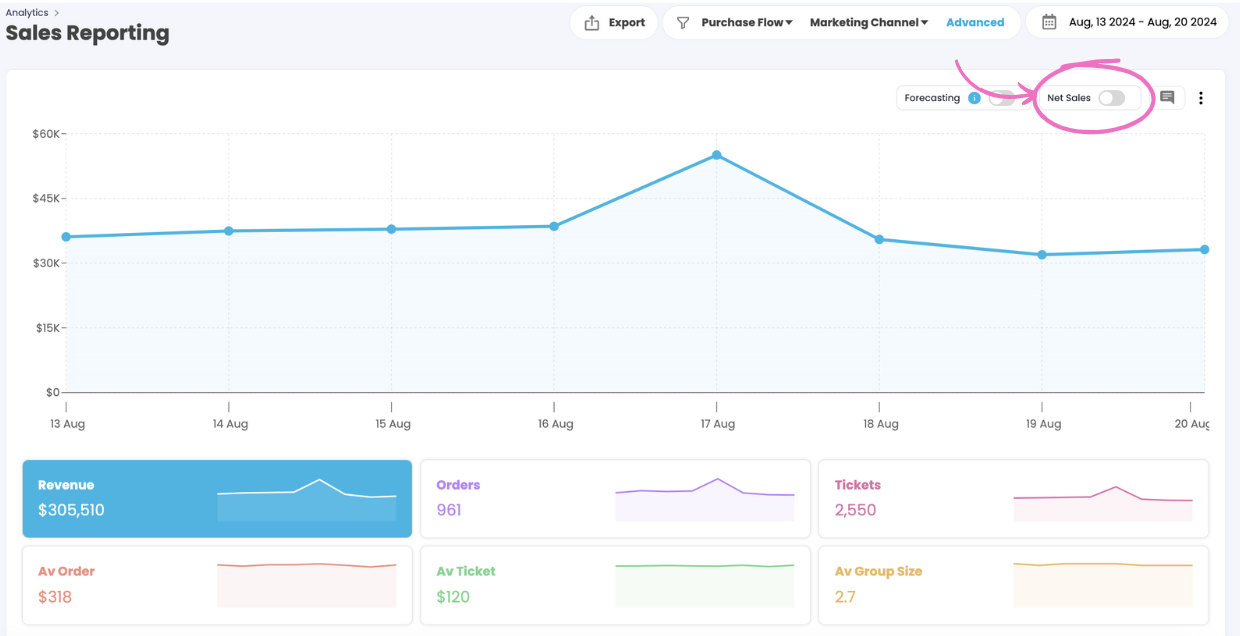
When setting up your NET revenue for the first time, hover over the ‘Net Sales’ toggle and a pop-up will appear asking you to navigate to the ‘Net Revenue Calculator’. Click the link to proceed. You can also navigate here by going to Settings > Account Settings.
On the page you’ll find the ‘Net Revenue Calculator’. You can set up your Tax Rate by entering the % of tax in the box and additional fees such as commissions and booking fees using the ‘Add New Fee’ button
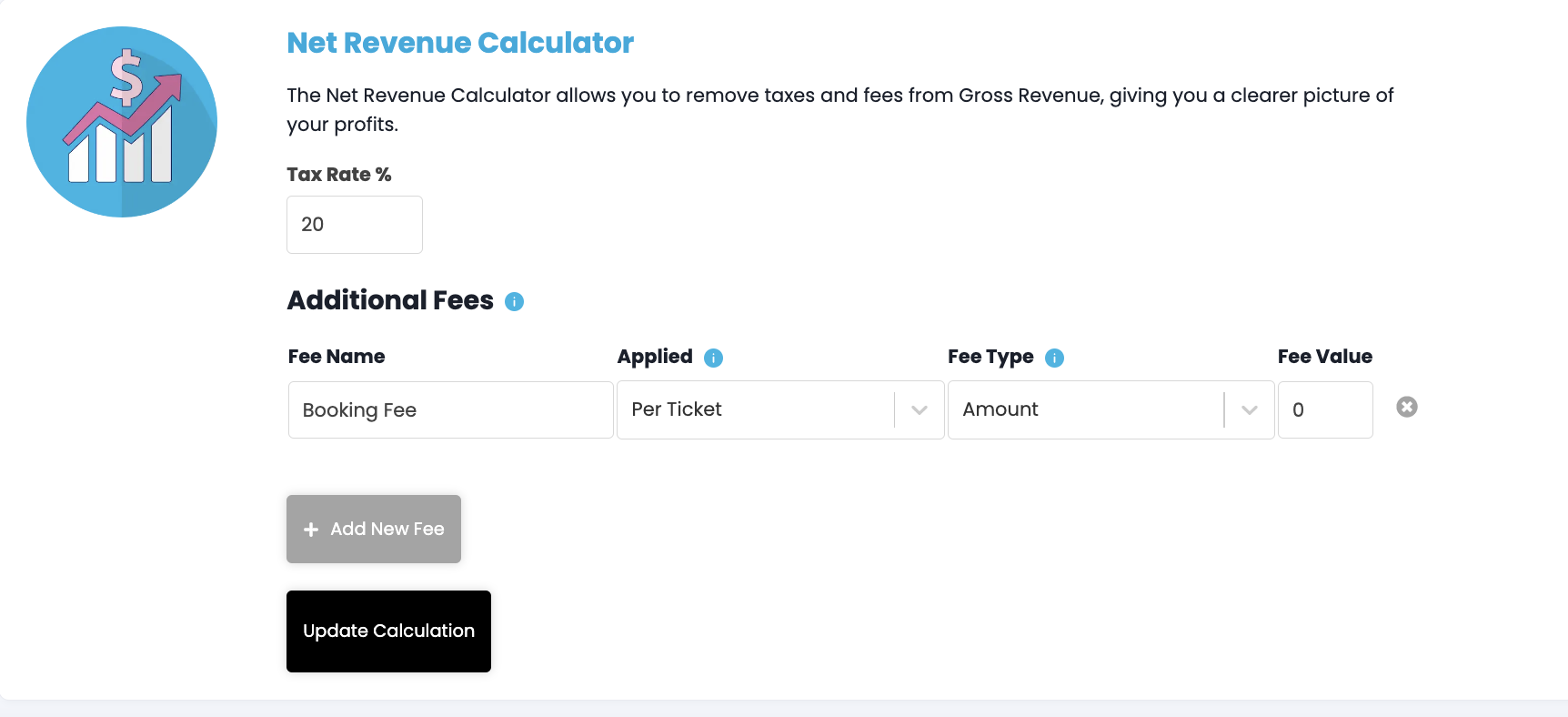
- To populate additional fees, label the type of fee you’re referring to under ‘Fee Name’ eg. ‘booking fees’
- The ‘Applied’ filter allows you to manage whether the fee value is per ticket or per transaction
- The ‘Fee Type’ allows you to set the fee value as a percentage or a flat amount in your chosen currency
- Lastly, input the ‘Fee Value’ as it relates to your fee type as a percentage or flat amount
- Select ‘Update Calculation’
How to use the NET Revenue function?
Ensure the date is set to the period you are looking to analyse. To change the date, use the date filter in the top right of the Sales Reporting screen.
Use the toggle on the Sales Reporting screen to switch the view from gross to net sales.