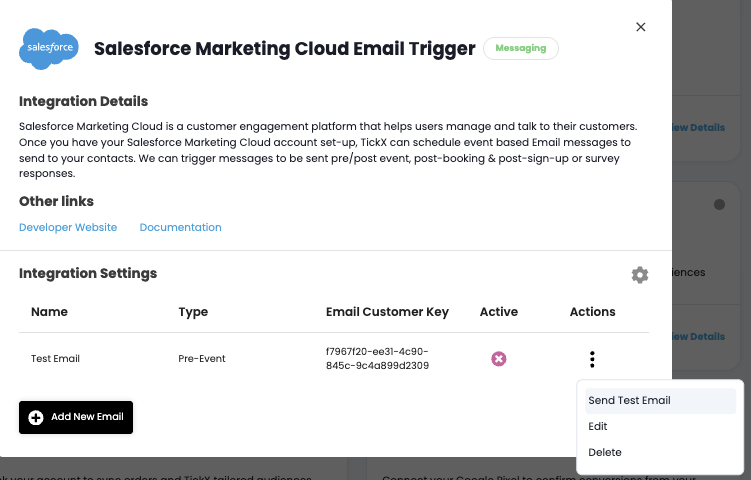
Open the integration in TickX IQ
1. Go to Marketing → Integration Settings → Salesforce Marketing Cloud Email Trigger → View Details
.png?width=670&height=155&name=image%20(6).png)
Create an installed packaged Salesforce
2. Select your name in the top right → Setup
.png?width=670&height=144&name=image%20(7).png)
3. In the left menu: Platform Tools → Apps → Installed Packages
.png?width=217&height=739&name=image%20(11).png)
4. Select New. Give it a name (e.g. TickX Cart Abandon) and an optional description, then save.
.png?width=670&height=694&name=image%20(13).png)
5. Select Add Component → API Integration → Next → Server-to-Server
.png?width=670&height=534&name=image%20(14).png)
.png?width=562&height=412&name=image%20(15).png)
6. Under permissions select Channels → Emails → Read, Write and Send, then click Save.
.png?width=538&height=1205&name=image%20(16).png)
Collect your API credentials
7. After saving, you'll be shown your Client Secret — copy it into TickX immediately. It won't be shown again.
.png?width=548&height=283&name=image%20(17).png)
For the Tenant Subdomain: look at the Authentication Base URI and copy the string between https:// and .auth.marketingcloudapis.com/. For example: mcakpzxdpy8lyjzgaesf5b3r5a9q
.png?width=670&height=687&name=image%20(19).png)
.png?width=670&height=687&name=image%20(18).png)
MID: In this example it’d be 12345678.png?width=670&height=72&name=image%20(20).png)
10. Exit Setup by clicking the Salesforce icon (top left), then go to Email Studio → Email → Subscribers → All Subscribers → Properties.
Copy the External Key (e.g. All Subscribers - 12345) and paste it into the Subscriber List field in TickX.
.png?width=670&height=118&name=image%20(21).png)
.png?width=670&height=316&name=image%20(22).png)
.png?width=495&height=414&name=image%20(23).png)
Set up a send classification
To send transactional emails you need a Send Classification and its External Key. Find it under Email Studio → Admin → Send Management → Send Classifications.
Create a new send classification
11. Click Create and fill in the details
Name: e.g. TickX Cart Abandon
External Key: e.g. TickXIQEmailTrigger (or your own)
Description: optional
12. Set CAN-SPAM and profiles
Set CAN-SPAM Classification to Transactional, then select your Sender Profile and Delivery Profile.
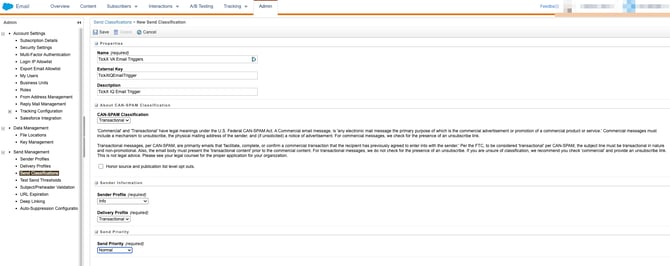
13. Save and copy the External Key
Click Save. Copy the External Key exactly as shown (e.g. TickXIQEmailTrigger) and paste it into TickX.
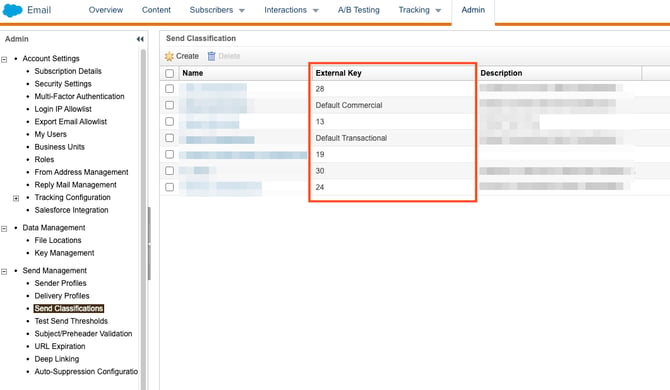
Using an existing send classification
Find it in the Send Classifications list, locate the External Key column and copy the value (e.g. 28 or Default Transactional).
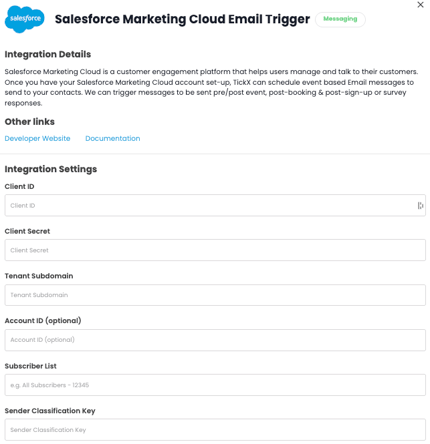
Enter credentials into TickX IQ
14. Add all credentials
Return to the Integrations Hub in TickX IQ and enter: Client ID, Client Secret, Tenant Subdomain, Subscriber List External Key, and Send Classification External Key.
13. Add New Email > My Email > Add Email
.png?width=670&height=632&name=image%20(24).png)
14. Add your email name - as you can have multiple cart abandon emails set-up, this is a way to differentiate the email trigger list. E.g. Cart Abandon - All Users
15. Add Email Customer Key- Inside of Salesforce go to Email > Content > Select the email you want to send > Copy the customer key, in this example it’s
00000000-0000-0000-0000-000000000000
.png?width=503&height=579&name=image%20(25).png)
AMPscript setup and merge fields
16. Add the following AMPscript block at the top of your email to declare all variables before using them.
Variable declarations
%%[
Set @Subject = AttributeValue('SUBJECT')
Set @FName = AttributeValue('FNAME')
Set @LName = AttributeValue('LNAME')
Set @Prehead = AttributeValue('PREHEAD')
Set @MCPreviewText = AttributeValue('MC_PREVIEW_TEXT')
Set @BookingDate = AttributeValue('BOOKING_DATE')
Set @BookingName = AttributeValue('BOOKING_NAME')
Set @BookingVenue = AttributeValue('BOOKING_VENUE')
Set @FlowURL = AttributeValue('FLOW_URL')
Set @TrackingPixel = AttributeValue('TICKX_TRACK_PIXEL')
Set @TicketTypes = AttributeValue('TICKET_TYPES')
Set @OrderSummary = AttributeValue('ORDER_SUMMARY')
Set @OrderSummaryRaw = AttributeValue('ORDER_SUMMARY_RAW')
Set @UnsubURL = AttributeValue('TICKX_UNSUBSCRIBE_URL')
]%%
How to use each field
Reference each variable in your email template using the syntax below.
- The Flow_URL, TICKX_TRACK_PIXEL & TICKX_UNSUBSCRIBE_URL are mandatory merge fields to include in your email template.
| Field | AMPscript syntax | Notes |
|---|---|---|
| FLOW_URL | %%=RedirectTo(@FlowURL)=%% | Checkout / cart recovery link required |
| TICKX_TRACK_PIXEL | %%=TreatAsContent(@TrackingPixel)=%% | Hidden tracking pixel HTML · required |
| TICKX_UNSUBSCRIBE_URL | %%=RedirectTo(@UnsubURL)=%% | Unsubscribe link required |
| SUBJECT | %%=v(@Subject)=%% | Email subject line |
| PREHEAD | %%=v(@Prehead)=%% | Preheader / inbox snippet |
| MC_PREVIEW_TEXT | %%=v(@MCPreviewText)=%% | Alternate preview text field |
| FNAME | %%=v(@FName)=%% | Customer first name |
| LNAME | %%=v(@LName)=%% | Customer last name |
| BOOKING_NAME | %%=v(@BookingName)=%% | Event or booking name |
| BOOKING_DATE | %%=v(@BookingDate)=%% | Formatted event date |
| BOOKING_VENUE | %%=v(@BookingVenue)=%% | Venue name |
| TICKET_TYPES | %%=v(@TicketTypes)=%% | Summary of ticket types |
| ORDER_SUMMARY | %%=TreatAsContent(@OrderSummary)=%% | HTML order summary block HTML |
| ORDER_SUMMARY_RAW | %%=v(@OrderSummaryRaw)=%% | Plain text order summary |
17. When you’re ready make sure to activate the email flow and press save then you’re ready to go.
IMPORTANT NOTE WHEN MAKING AMENDMENTS TO EXISTING TEMPLATES
Once the template is connected to TickX IQ, you can make amendments to it in Salesforce without having to update any details in IQ. However for the changes to pull through a 'Test' email is required to be triggered from IQ to clear the Cache.
To do this find the email trigger -> Actions - > Send Test Email and that will refresh the template in IQ.