
This article explains how to use the Availability Manager in TickX IQ to update calendar availability for your purchase flows. It covers what the tool does, how default availability thresholds work, and how to override time slot statuses to show Good, Limited, or Sold Out. You’ll learn how to hide and unhide performances, filter by day, availability, or tags, and select individual or bulk timeslots. The guide also walks through how changes are applied in real time and how to revert overrides back to default.
What is the Availability Manager?
The Availability Manager is a tool which lets you easily change the availability status of particular time slots / performances, or completely hide them.
This can be used if you want to take certain time slots off sale, or if there are certain performances that you want to override to show as sold out or limited availability.
The Availability Manager only affects the calendar on the TickX purchase flows, and will not affect any underlying setup via the ticketing system.
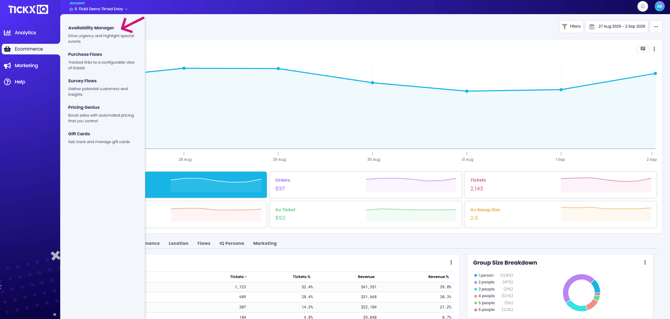
You can find this in the IQ dashboard via Ecommerce > Availability Manager.
Default Availability
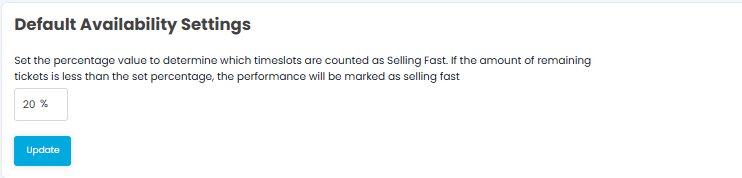
The default availability setting determines at which stage each timeslot/performance goes from Good Availability to Limited.
So if this is set to 20%, once 80% of tickets have sold, leaving 20% remaining, the performance will switch from Good Availability to Limited Availability / Selling Fast
When the number of tickets available is less than the desired quantity of the customer the performance will be marked as Sold Out.
The availability status for a time slot / performance can be overridden using the Availability Manager in the IQ dashboard which if used forces it to be Limited or Sold out regardless of the number of tickets sold.
Navigating Availability Manager
The default view is a monthly calendar view which reflects the real time availability of your production. You can toggle between this view and a weekly and daily view:
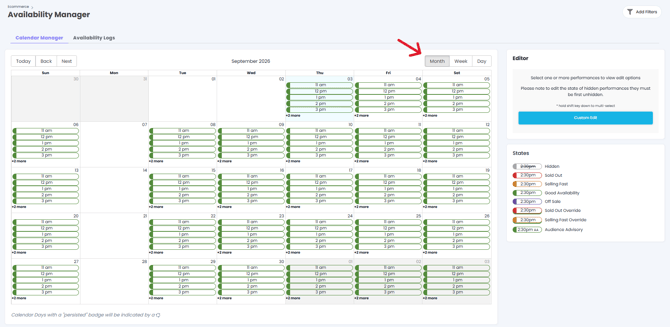
The key for availability shows:
- Hidden Timeslots = Grey
- Sold Out = Red
- Low Availability / Selling Fast = Amber
- Good Availability = Green
- Off Sale = Purple
- Sold Out Override = Red with a Green underline
- Low Availability / Selling Fast Override = Amber with a Green underline
To the right of the calendar you can see the filters and the editor which allows you make changes to the calendar availability.
Using Availability Manager
Selecting your time slots
- You can select the time slots you wish to update by either clicking into them individually; using the 'Shift' button to select multiple individual timeslots; or clicking and dragging to select groups of time slot.
- Using the filters you can choose to pull out specific timeslots and days of the week.
- You can also use filters to select by availability status - i.e. if you wanted to hide all 'Sold out' timeslots
- The filter by tag functionality is for when you have different ticket types which can be tagged separately- i.e. concessions, or different experience types.
Making the changes
- When you have selected your timeslots, simply use the editor to change the state or hide/unhide.
- Once you have made the change, this will be automatically and immediately reflected on the live calendar so you can check straight away that everything is displaying as expected.
- If you do make a mistake you can revert the timeslot back to it's default state by choosing the default button
Be conscious that any changes will be immediately reflected on your live website. We have full system logging in place so we can provide information on when changes were made and by who.
If you do not have access to Availability Manager and think you should, please contact your account manager.