
How to set-up your Twilio SMS Integration so you can trigger event based SMS messages. You can find out more about SMS triggers here.
Note: Before you get started you need ensure that your SMS account is set-up and you have an SMS number approved.
- Go to Integrations Hub > Audiences > Twilio SMS Trigger > Add Details
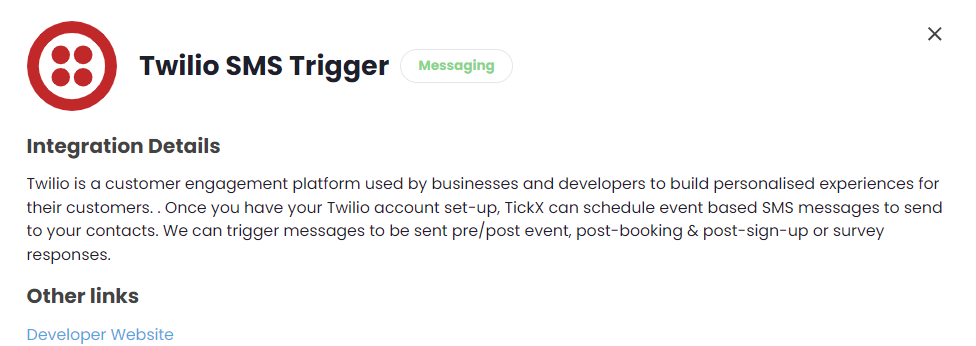
- Add Integration Setting details
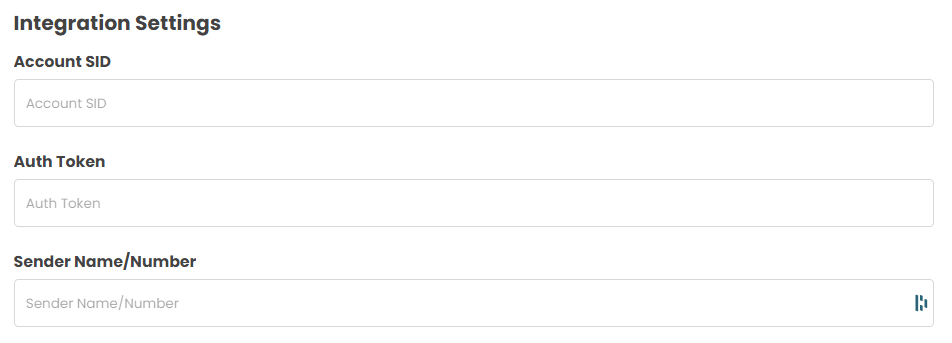
- Enter Account SID
- Login to Twilio
- Go to Account Info > View → add this into Account SID field in TickX IQ
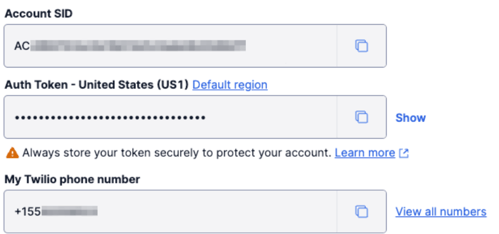
- Enter Auth Token
- Login to Twilio
- Go to Account Info > View → add this into Auth Token field in TickX IQ
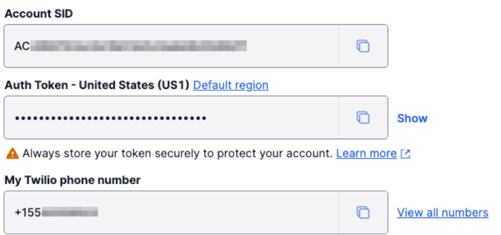
- Add Sender Name - Account Info > View > My Twilio phone number
- Toggled Active On - Save. Your Integration is now set-up.
- Add New SMS
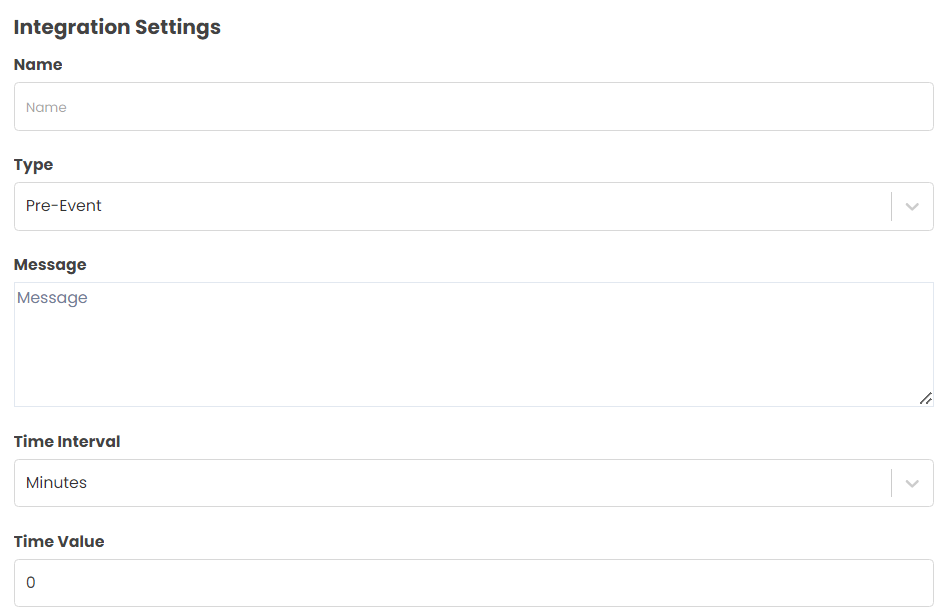
- Add your SMS name - as you can have multiple SMS triggers set-up this is a way to differentiate the SMS trigger list. E.g. Know Before You Go
- Select Type > This is to determine after which event type you would like your SMS to trigger. E.g. Pre-Event
- Enter your SMS content
- Add Time Interval - Minutes or Hours
- Add Time Value (Numeric) This is how many minutes/hours you would like to trigger the SMS either before/after the Event Type.
- Advanced Options
- You can segment who receives certain content based upon our Advanced Options
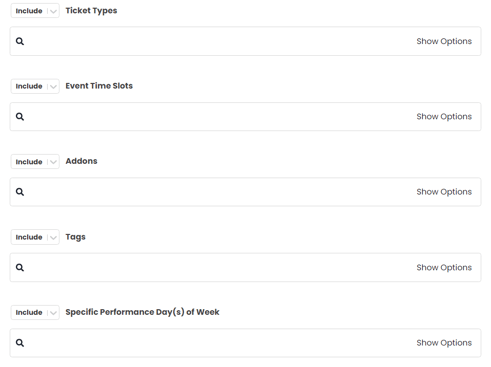
- For example; you might have different Know Before You Go content to send customers attending Mid-Week from those attending at the Weekend. These advanced options allow you to trigger more specified content to your attendees.
- You can segment who receives certain content based upon our Advanced Options
- Toggle Active On > Your SMS will now start triggering once the criteria is met.