
How to set-up your Burst SMS Integration so you can sync contacts from TickX.
Learn more about Audience Synchronisation here.
Learn about using the TickX Audience Builder here.
- Go to Integrations Hub > Audiences > Burst SMS > Add Details
- Enter API Key
- Go to Settings > API Settings
- Copy API Key → add this into API Key field in TickX IQ
- Enter API Secret
- Go to Settings > API Settings
- Copy API Secret → add this into API Secret field in TickX IQ
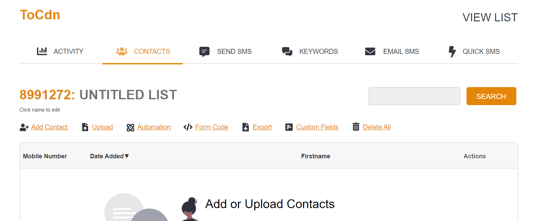
- Enter List ID
- Go to Messaging > Contacts > Create New List
- Add Contact Name
- Copy List ID → add this into List ID field in TickX IQ
- Set Purchase Flow Opt-Ins
- New customers will be added into Burst SMS once Audience Sync is switched on. This field will determine whether or not there should be any opt-in requirements for the customers being added.
- Set Burst SMS to Active > Save
- Your Burst SMS is now set-up. Contacts will now be added into Burst SMS automatically based on your subscription setting.