
This guide explains how to create and manage customer audiences in TickX IQ using order data or survey insights. It walks you through naming audiences, setting criteria, filtering behaviours, and applying opt-in rules. You’ll learn how to build high-value segments for lookalike marketing, email campaigns, and audience synchronisation across third-party platforms such as Meta, Google, TikTok, HubSpot, and Mailchimp. With examples and best practices, this guide helps you use Audience Builder to grow reach, personalise messaging, and improve campaign efficiency.
Supercharge your marketing using our Audience Builder to segment and manage your customer base.
Creating an Audience
Creating an Audience is very easy using the steps below. We would always suggest you wait until the pot hits around 1000 customers to start lookalike marketing.
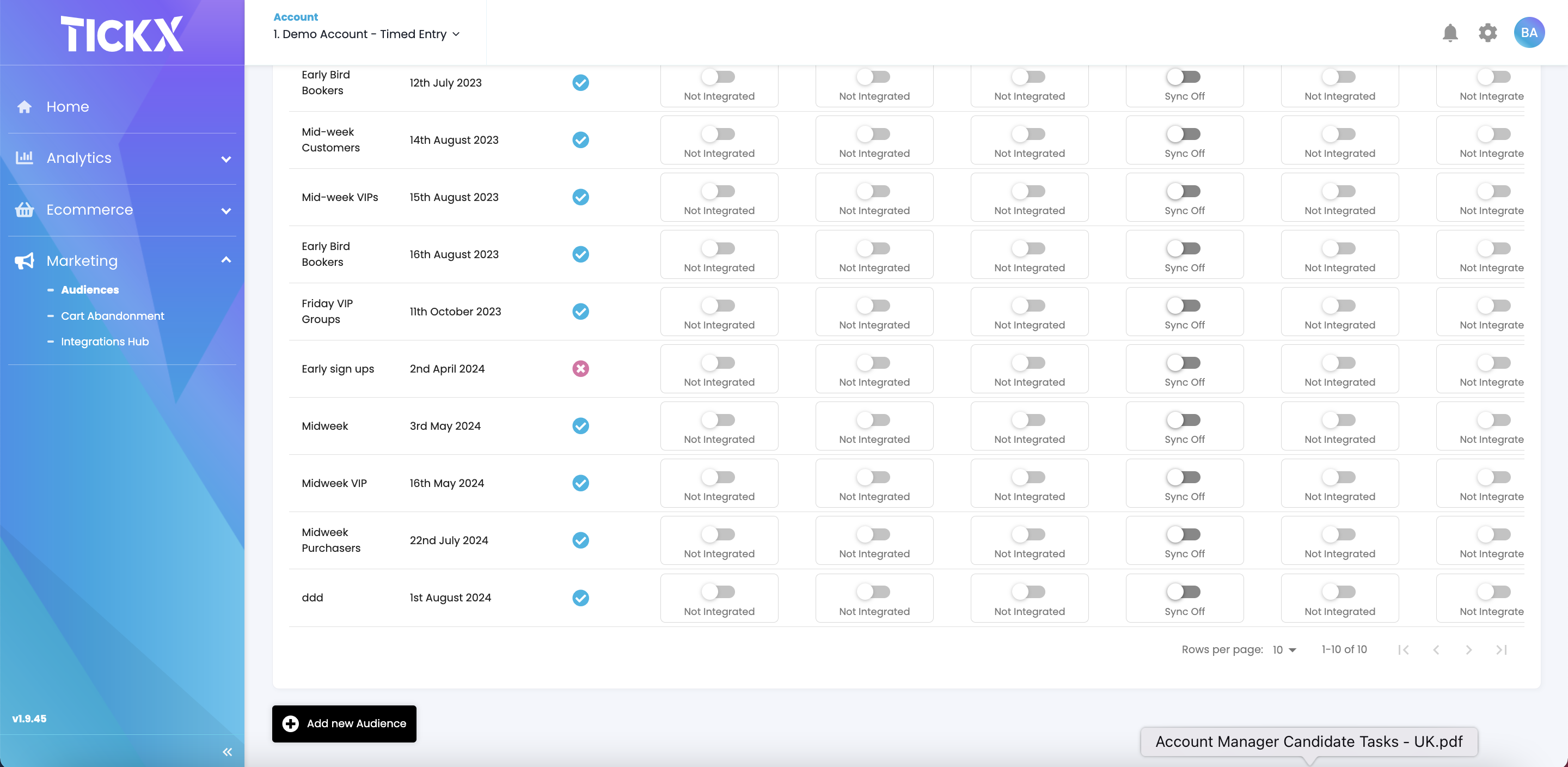
- From the navigation menu select Marketing > Audiences
- Select ‘Add New Audience’ at the bottom of the page
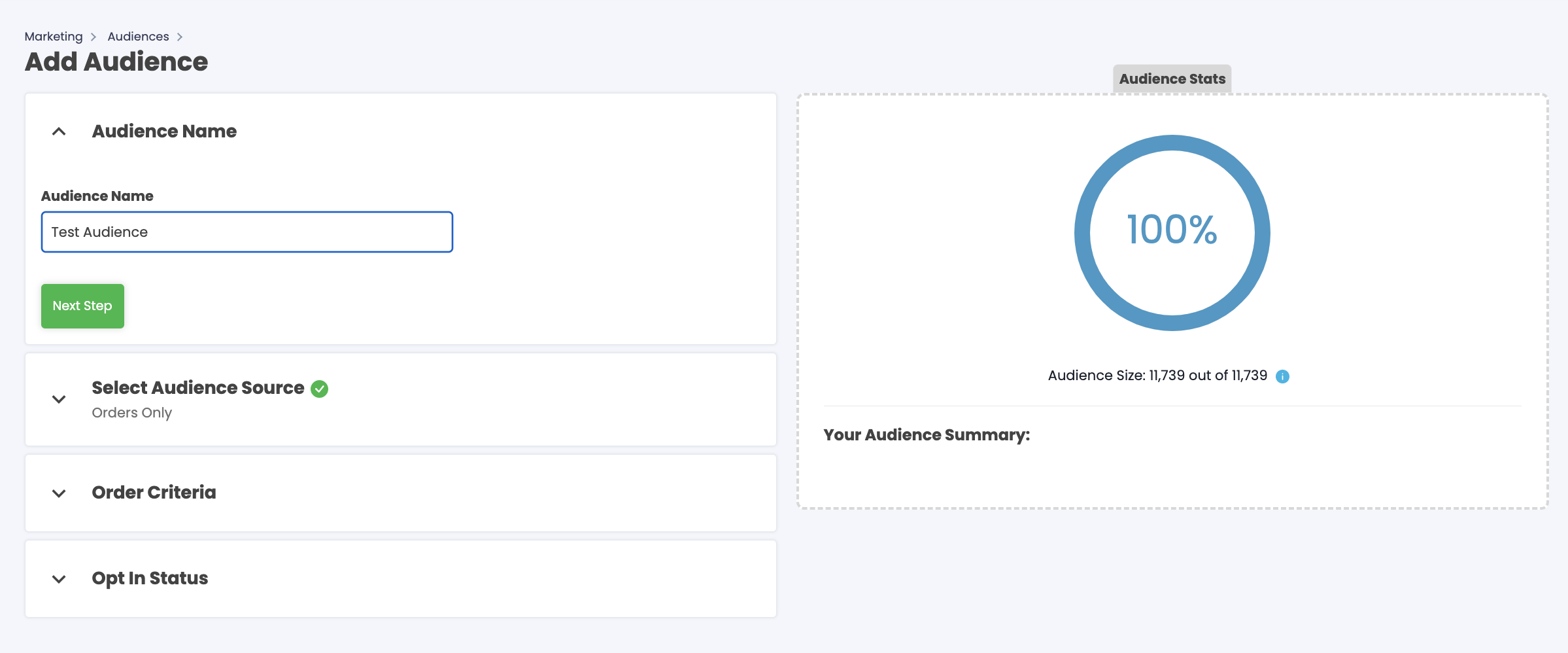
Add Audience Name
Under ‘Audience Name’, name your audience based on the criteria you are creating. Some examples are:
- All customers
- Midweek matinee customers
- Customers who have booked Band A / Premium tickets (Premium/ VIP bookers)
- Customers who have booked less than 14 days out (2 weeks out bookers)
- Customers who have booked 4+ tickets (4+ groups)
- Customers who have booked in the Stalls (Stalls bookers)
Add Source
You can create your Audience based off Order or Survey Data.
- Order Data - information related to a customers' purchase.
- Survey Data - information related to a customers' survey or sign-up responses
Add Criteria
Once you have determined the data source, you can then select fields and filter down your customer group.
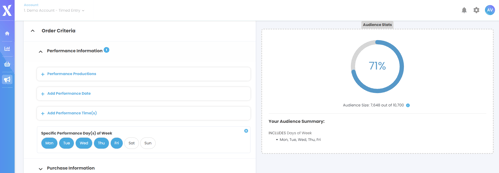
Example; The insights show that the majority of your revenue is made up by couples attending at weekends but you want to encourage Mid-Week Sales. You therefore want to set your criteria to Mid-Week Couples:
- Select Mon-Fri 'Days of the Week'
- Update Ticket Quantity to 2
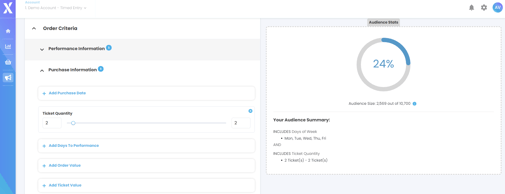
- The gauge on the right will then show how much data we have in the system to base your lookalike audience on.
💡 As a reminder, some third party systems require a minimum of 1,000 matches to create a lookalike campaign. If your data pool is too low, check back weekly to see if your audience pool has increased.
Set Opt-In Status
A list of all opt-in questions will appear within the Opt-In status section. You need to confirm whether you're including those who have opted-in, out or both within your audience. If you are utilising this data for direct marketing you may want to ensure that everyone within the audience has opted-in to hear from you via email.
Once you are happy, click ‘Update Audience’ to save your new segmented audience.
Using your Audience Data
You can use audiences and audience synchronisation for several use cases including:
- Lookalike audiences: this is where hashed data of your customer is passed to marketing platforms to find more customers like yours. This does not use PII data to market directly to customers and it's a great way to expand your customer pool. Our clients frequently say these lists are their most efficient and highest converting.
- Email campaigns: you can create segments in the audience builder to push people into different pots for email campaigns such as a VIP pot, a family pot or a price conscious pot. Pair this custom purchase flows for truly personalised marketing.
- Customer data: we can restrict access to direct exports, but audience lists can be exported into a CSV should staff need to contact customers and cannot easily get that information from the ticketing system.
You can connect TickX IQ with your third party marketing systems so that all new data syncs automatically:
We have integrations with the below platforms: