
This guide explains how to set up the Google Ads integration in TickX IQ so you can automatically sync your TickX audience segments into Google Ads. It walks you through linking your Google Ads account, approving TickX permissions, and ensuring sub-accounts appear correctly in the integration dropdown. Once enabled, all toggled TickX audiences will appear as lists in Google Ads’ Audience Manager and refresh automatically, allowing you to run highly targeted search, display, and video campaigns using real customer data.
How to set-up your Google Ads Integration so you can sync audiences from TickX.
Learn more about Audience Synchronisation here.
Learn about using the TickX Audience Builder here.
- Log-in to Google Ads Manager (You need to ensure that you have Admin Access for the account you would like to link)
- In the same window > new tab> Go to Integration Hub > Audiences > Google Ads
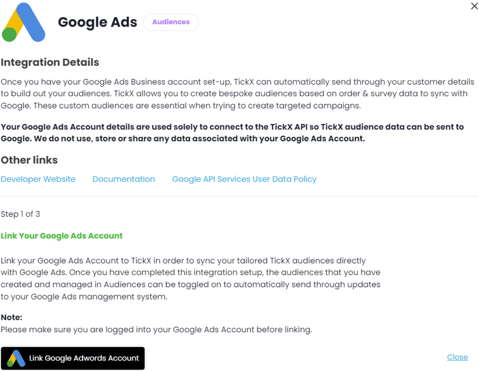
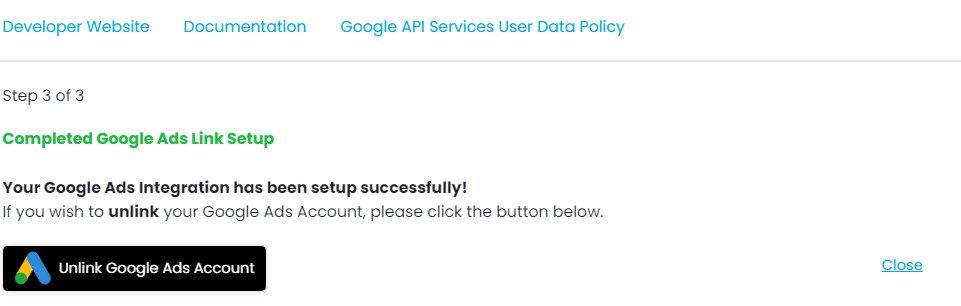
- Follow the step by step process by selecting an account > approve TickX to make changes > Save selection
- Google Audiences is now set-up
- All TickX IQ toggled audiences will now appear and update as lists within Google Ads. (Tools & Settings > Shared Library > Audience Manager - the new lists will appear within the Audience Manager.)
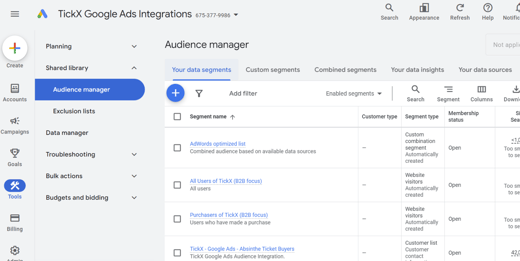
- Audience syncs into Google Ads every 24 hours.
Note: If you would like to ensure your sub-accounts appear within the drop-down please follow these steps:
- Select the sub account in the account drop down.
- Navigate to Admin -> Access and security -> Users
- Click the plus button to add a user to the sub account. They need to add the same email they are using during the linking process and give it admin privileges.
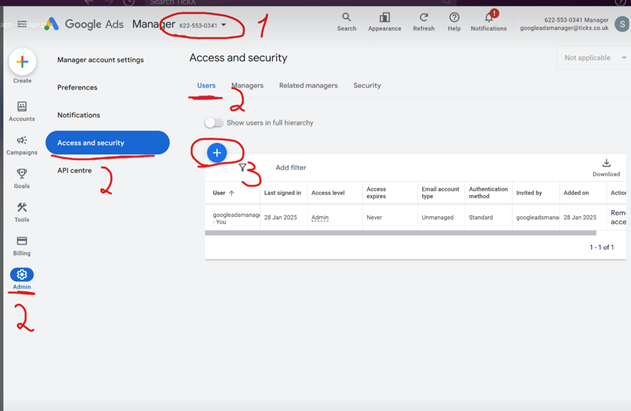
This needs to be done for all sub accounts you would like to appear in the drop-down when creating the integration set-up.