This guide explains how to use the TickX Survey and Signup Builder to create Sign-Up, Post-Purchase, and Waiver surveys that capture valuable first-party data. It covers what each survey type is used for, how TickX attributes revenue, and how demographic and behavioural insights help you understand your audience and improve future marketing. You’ll learn how to build each survey flow step-by-step, customise questions and messaging, add opt-ins, activate flows, and generate QR codes. The guide also links to best-practice advice on question selection, signup campaign strategy, and widget integration.
How it Works?
The TickX Survey and Signup Builder is our tool to gather first party data from your customers via surveys, meaning you understand your audiences better and can take actions from the insights. You can also build and segment your database using these tools.
What are the TickX Survey and Signups?
There are three different survey types which you can build within the survey builder:
- Sign Up
- Post-Purchase
- Waiver
You can find advice on the types of questions to include here.
Details on how to integrate the Sign-Up widget can be found here.
Sign Up
The sign-ups are a way of gathering customer opt-in data and measuring interest in a new project or event. The sign-up flow is fully branded and can be added pre-sale or anywhere throughout your site. You can also ask questions alongside gathering contact details to get a deeper understanding of your sign-ups.
When sign-ups convert to customers we can attribute the revenue to them so you can see the success of your pre-sale marketing campaigns. Read our expert guide on running a successful signup campaign here.
Post-Purchase
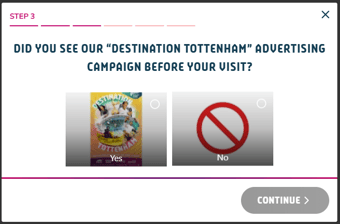
The post-purchase survey provides insights into audience behaviour and motivation when booking or attending an event. It is fully branded and triggers at order confirmation. This means it has no effect on conversion rate, but still typically has a take up rate of 60-90%.
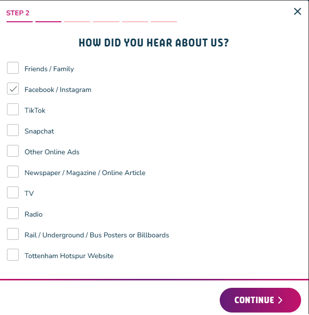
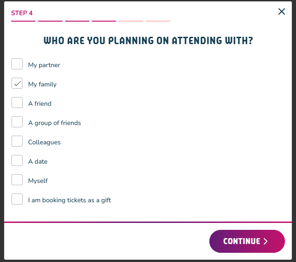
You may consider asking how a customer heard about your event or who they are planning on attending with. Find more recommendations on what to include here.
Waiver
If you have any health and safety measures which you need your attendees to read and agree to before attending you can utilise our waiver form. Waivers allow you to gather contact details of who will be attending and get them to sign off on any contractual details they need to before arriving on-site.
Survey Builder - Sign-Up
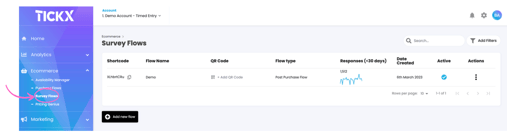
- From the dashboard menu, select Ecommerce > Survey Flows
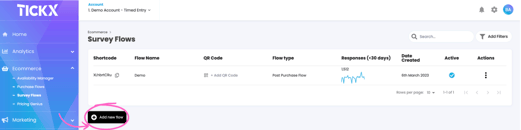
- Select Add New Flow
- Name your Survey Flow - This is for internal use only and your customers will not see this.
- Select Flow Type - Sign-Up
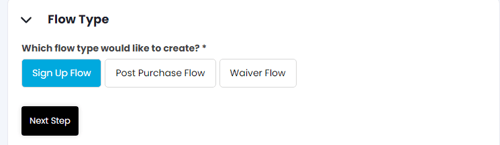
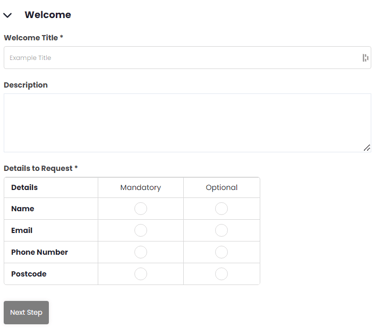
- Add Welcome message to add to your sign-up flow & select which demographic details you would like to gather. Please Note: Email Address is how we will be able to attribute future sales.
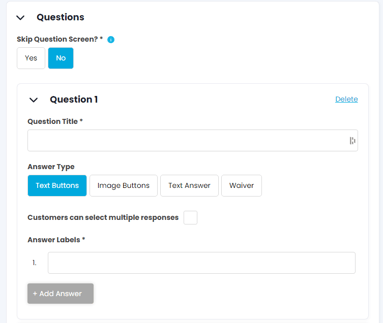
- Add any additional questions you would like to gather from your sign-ups (Optional)
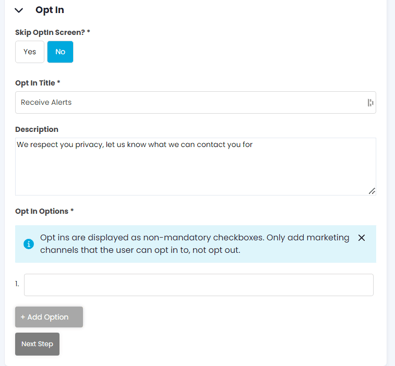
- Add any opt-in statements you would like your sign-ups to agree to (Optional)
- Add confirmation message to show once customers have completed the sign-up (Optional)
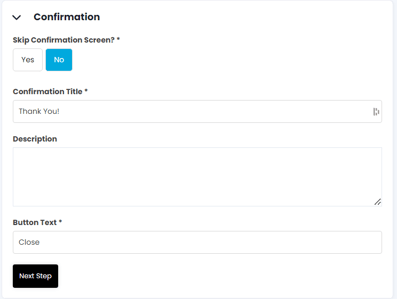
- Set as Active & Save Flow
- You can then imbed this sign-up within your GTM container - if you need any help with this please speak to your Account Manager
- You can click Add QR code which will generate unique QR code which will take customers directly to that link. You can learn more about this here.
Survey Builder - Post-Purchase
- From the dashboard menu, select Ecommerce > Survey Flows
- Select Add New Flow
- Name your Survey Flow - This is for internal use only and your customers will not see this.
- Select Flow Type - Post-Purchase
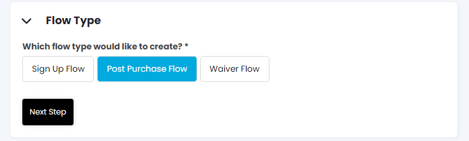
- Add any questions you would like to ask your customers post-purchase
- Questions: we recommend displaying up to two questions but we can display more
- A selection of responses: we can support both single select and multiple select options
- Add any opt-in statements (Optional)
- We advise skipping this section as customers would have already been asked to opt in at the Checkout stage of booking their tickets so this is not needed.
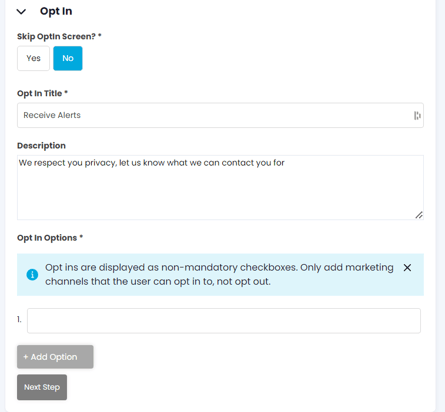
- We advise skipping this section as customers would have already been asked to opt in at the Checkout stage of booking their tickets so this is not needed.
- Add confirmation message to show once customers have completed the post-purchase (Optional)
- If you choose to skip the confirmation screen, the customer will be taken back to their booking confirmation page. We advise skipping this screen to limit additional clicks for the customer.
- If you choose to skip the confirmation screen, the customer will be taken back to their booking confirmation page. We advise skipping this screen to limit additional clicks for the customer.
- Set as Active & Save Flow
- You can then imbed this sign-up within your GTM container - if you need any help with this please speak to your Account Manager
- You can click Add QR code which will generate unique QR code which will take customers directly to that link. You can learn more about this here.
Survey Builder - Waiver
- From the dashboard menu, select Ecommerce > Survey Flows
- Select Add New Flow
- Name your Survey Flow - This is for internal use only and your customers will not see this.
- Select Flow Type - Waiver
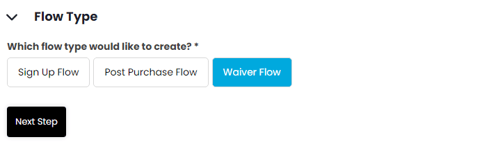
- Add Welcome message to add to your waiver flow & select which demographic details you would like to gather. Gathering details is essential for determining who has and hasn't completed the health & safety form ahead of attending the venue
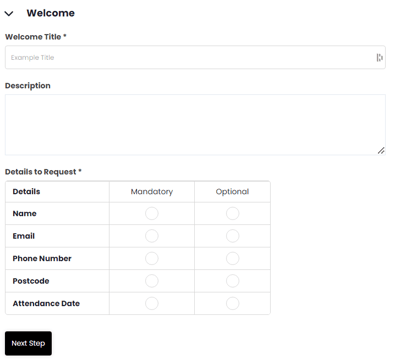
- Add waiver details by selecting the waiver question type
- You can copy & paste all your health & safety information into the text field
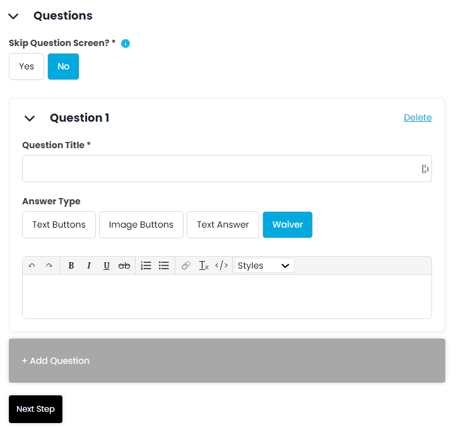
- You can copy & paste all your health & safety information into the text field
- Add any opt-in statements (Optional)
- We advise skipping this section as the focus of waivers is to get health & safety sign-off
- We advise skipping this section as the focus of waivers is to get health & safety sign-off
- Add confirmation message to show once customers have completed the waiver (Optional)
- Set as Active & Save Flow
- You can then imbed this sign-up within your GTM container - if you need any help with this please speak to your Account Manager
- You can click Add QR code which will generate unique QR code which will take customers directly to that link. You can learn more about this here.
How to trigger a sign up widget from a button:
Option 1 - Trigger the JS from the button itself
Use the onClickparam on the CTA button to trigger the widget code, for example:
<a href="#" onclick="tx({type: 'onboarding', widgetId: 'INSERT_WIDGET_ID', configId: 'INSERT_CONFIG_ID'}); return false;">Sign Up</a>
Option 2 - Use an event handler to intercept the button click and fire the JS
For example if the button had id="signupCTA"you could include JS on the page like below:
const signupCTA = document.querySelector('#signupCTA'); signupCTA.addEventListener('click', function(event){ tx({ type: 'onboarding', widgetId: 'INSERT_WIDGET_IDconst signupCTA = document.querySelector('#signupCTA');signupCTA.addEventListener('click', function(event){tx({type: 'onboarding',widgetId: 'INSERT_WIDGET_ID',configId: 'INSERT_CONFIG_ID'});return false;}); ', configId: 'INSERT_CONFIG_ID' }); return false; });
Option 3 - Use a GTM Trigger
Use Google Tag Manager to create a trigger which fires on the signup button click and then use a custom HTML tag to include the embed code like:
<script>   tx({     type: 'onboarding',     widgetId: 'INSERT_<script>
tx({
type: 'onboarding',
widgetId: 'INSERT_WIDGET_ID',
configId: 'INSERT_CONFIG_ID'
});
</script> WIDGET_ID',     configId: 'INSERT_CONFIG_ID'   }); </script>
Examples
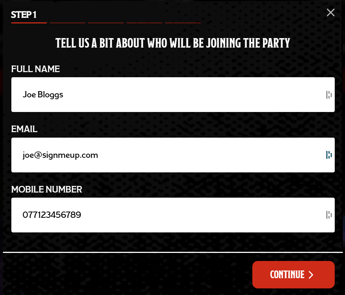
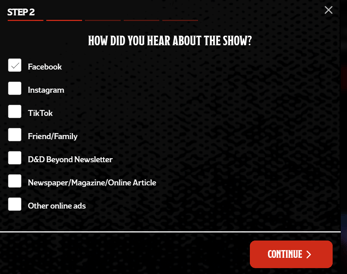
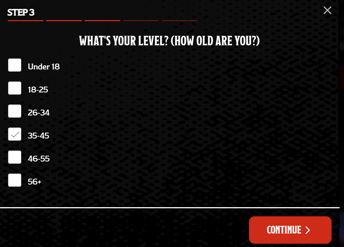
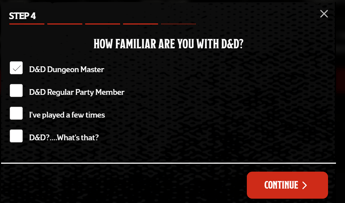
Sign-up Survey Examples
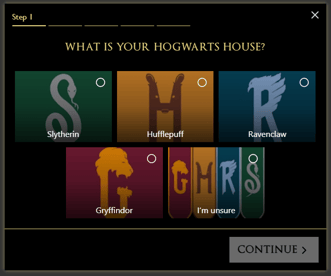
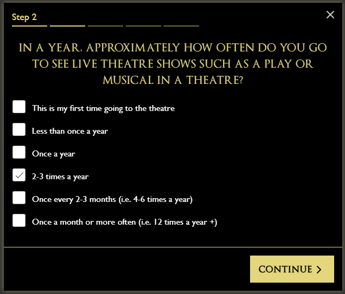
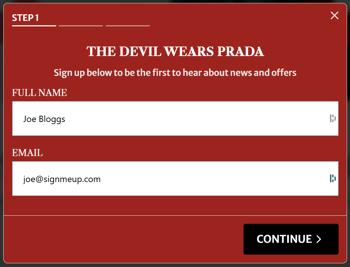
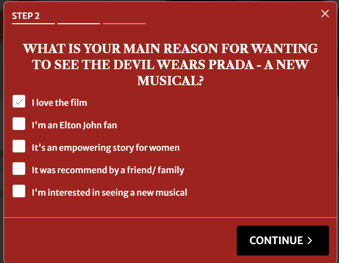
Please see some examples of our fully branded sign-up surveys below:
Post-Purchase Survey Examples
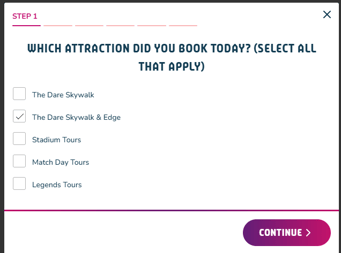
Please see some examples of our fully branded post-purchase surveys below: